


With over 2 billion users across 180+ countries, WhatsApp from Meta continues to be the top choice app for free messaging and calling via the internet, both in the Android and iOS ecosystems.
In order to keep the user interest and engagement as a top priority, WhatsApp keeps on introducing new elements and features from time to time.
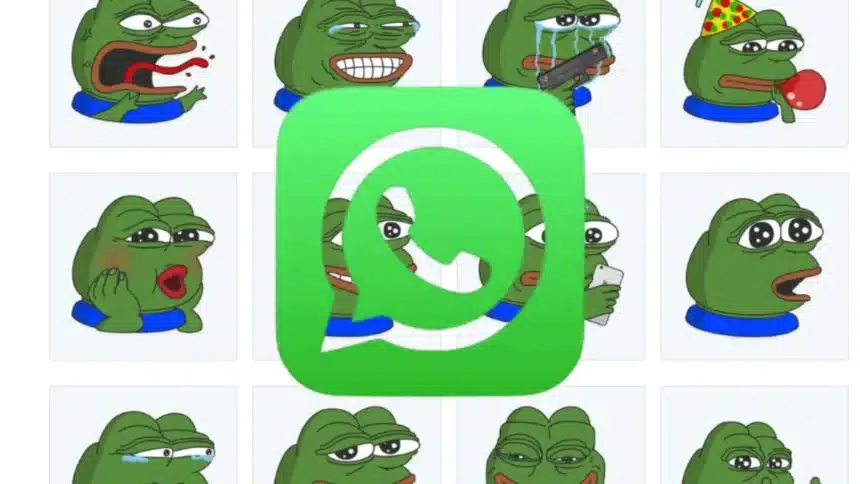
Their latest offering is AI stickers to make messaging much more personal, expressive, and fun.
While traditional emoji and standard sticker packs are great, they are limited to whatever pre-defined designs are already present on a user’s smartphone.
This could restrict users from how they truly want to express a specific emotion, inside joke, or reaction.
Here is exactly how to do it.
What Are AI Stickers?
AI stickers are like you are telling a robot what to draw. You type something like, ‘A cat wearing sunglasses on a beach,’ and WhatsApp AI, powered by Meta, will create a sticker right there and then.
Once it is made, it saves automatically to your sticker collection, and you can send it whenever you want.
The feature is not available everywhere yet. Even if your friend has it, you might not; it’s still rolling out country by country.
Also, your sticker description needs to be typed in one of four languages: English, Indonesian, Portuguese, or Spanish. Other languages won’t work for now.
How to create AI Stickers
Let me tell you easily, how to create AI Stickers-
Step 1: Open Any Chat
Go into any chat in WhatsApp, it can be a friend, a group, or anyone. You don’t need to be in a specific chat for this to work.
Step 2: Tap The Sticker Button
Look for the sticker icon at the bottom of your chat screen (it’s the little square smiley face near where you type). Tap it.
Step 3: Tap Create, Then Use AI
Inside the sticker tray, you’ll see a Create option. Tap it, then tap Use AI. If a pop-up appears asking you to continue, just tap Continue.
Step 4: Describe Your Sticker
Now the fun part. Type a description of the sticker you want. Be as creative as you like. Something like “a sleepy panda holding coffee” or “a superhero dog flying over the city.” WhatsApp will then generate up to four different sticker versions based on what you typed. Don’t love any of them? Just change your description and try again.
Step 5: Send, Save, Or Edit
Once your stickers are ready, you have a few options:
To send one, just tap it. Now, it goes straight into the chat.
To find it later, tap the AI sticker icon in your sticker tray. Your recently created stickers will all be there, ready to use anytime.
To edit a sticker before sending, press and hold it, then tap Edit. From there, you can add other stickers or emojis on top, put text on it, or even draw on it with your finger.
When you’re happy with how it looks, tap the send button.
That’s It! That’s how simple it is to create a sticker.
How to Save AI Stickers Sent by Your Friends
What if your friend sends you a hilarious AI sticker they made? You can save it to your collection as well.
Step 1: Tap on the sticker in your chat history.
Step 2: Select Add to Favourites (the star icon).
Step 3: It will now live in your permanent sticker tray, ready to be deployed whenever the perfect moment strikes.
Also Read: How to Automatically Clean Up Your iCloud Mail Inbox on iPhone