



A factory reset can fix many issues, such as a slow phone, a full storage drive, software bugs that won’t go away, or just getting your device ready to be sold or given away. But when you do a factory reset, your photos, messages, apps, settings, and accounts are all erased.
It is important to back up Android phone before factory reset. This way, you won’t lose any important data. This article covers the main methods to back up your data, what each one protects, and how to make sure your data is safe before you erase your device.
- Back Up Android Phone Before Factory Reset: What You Need to Save
- Why Backing Up Matters Before a Factory Reset
- What Should You Back Up
- Method 1: Use your Google Account to back up.
- Step 1: Open Backup Settings
- Step 2: Make Google One Backup work
- Step 3: Start the backup by hand
- Step 4: Make sure that the backup is finished
- Method 2: Back Up Photos and Videos with Google Photos
- Method 3: Back up to a computer manually
- Method 4: Back Up Messaging Apps Separately
- Step 5: Save your list of apps and passwords
- Double-Checking Your Backup Before Resetting
- How to Perform the Factory Reset
- Restoring Your Data on the Same or a New Device
- Common Mistakes to Avoid
- Final Thoughts
Back Up Android Phone Before Factory Reset: What You Need to Save
| Data Type | Recommended Backup Method | Why It Matters |
| Photos & Videos | Google Photos + Computer | Protects personal memories and important media |
| Contacts | Google Account Sync | Makes contacts easy to restore |
| Apps & App Data | Google Backup | Helps restore apps and supported data |
| WhatsApp Chats | WhatsApp Backup | Keeps chats and supported media available |
| SMS & Call Logs | Google Backup / Separate Backup | Helps preserve important messages and call history |
| Documents & Downloads | Computer / Cloud Storage | Protects files that may not be included in device backup |
| Passwords & Logins | Google Password Manager | Makes account access easier after the reset |
| Device Settings | Google Backup | Helps restore supported settings and preferences |
| Wi-Fi Passwords | Google Backup | Can restore saved network information on supported devices |
Why Backing Up Matters Before a Factory Reset
A factory reset puts your phone back to the way it was when it was first bought. That means that as soon as the reset is done, every picture, text message, app, saved password, and personal setting is gone. This process can’t be undone like an app cache clear or software update can.
There is no in-built mechanism to get back what you lost once it’s done unless you took a backup first. Now, ten or fifteen minutes spent backing up your data can keep you from losing memories and data that are important to you years from now.
What Should You Back Up
It helps to know exactly what needs to be saved before starting the backup process. You should back up more than just photos, but most people only do that.
- Photos and videos
- Text messages and call logs
- Contacts
- App data and app list
- WhatsApp or other messaging app chats
- Documents and downloaded files
- Passwords and saved logins
- Device settings and Wi-Fi passwords
Method 1: Use your Google Account to back up.
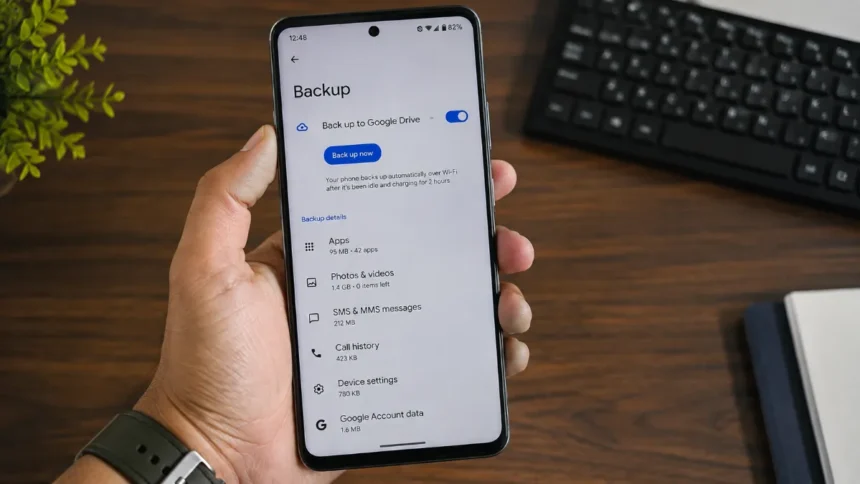
The best and easiest way to protect your Android data is with Google’s in-built backup system, which is part of the operating system and doesn’t need any extra apps.
Step 1: Open Backup Settings
If you have a Samsung, Pixel, or OnePlus phone, the exact path may be a little different. Go to Settings > System > Backup.
Step 2: Make Google One Backup work
Make sure you’re signed in to the right Google account and turn on the backup button. If Google Photos backup is also turned on, this backs up your photos, contacts, calendar events, app data, call history, device settings, and app data.
Step 3: Start the backup by hand
If you tap “Back Up Now,” you can start a backup right away instead of waiting for the scheduled backup to happen. This makes sure that the most recent data is on the device before you reset it.
Step 4: Make sure that the backup is finished
When you’re done, go to the backup status page to see when and how big the last backup was. If the timestamp is recent, it means that your data is safely stored in the cloud.
Method 2: Back Up Photos and Videos with Google Photos
Even if you use Google’s regular backup, you should make sure that your media is also protected through Google Photos. This is because photos and videos usually take up the most space and are the most important to people.
- Go to Google Photos on your phone.
- Pick up your profile picture and go to Photos > Settings > Backup.
- Make sure Backup is turned on and pick the upload quality you want.
- Especially if you have a lot of media, wait for the upload to finish.
- Check to see if your photos have been synced by looking at the cloud icon next to them.
Read Also: Download All Google Photos, Videos In 10 Simple Steps
Method 3: Back up to a computer manually
Transferring data directly to a computer is a safe choice for people who would rather have a local copy of their files than relying only on the cloud.
- Use a USB cable to connect your Android phone to your computer.
- When your phone asks you, choose File Transfer (MTP) mode.
- Open up the phone’s folder on your computer.
- The DCIM, Downloads, and Documents folders should be copied to a different place on your computer.
- Once the transfer is done, safely unplug the phone.
This is a great way to make a second backup because it gives you a copy that isn’t tied to the internet or the cloud storage limits.
Method 4: Back Up Messaging Apps Separately
It’s important to back up your messaging apps separately because regular Android backups don’t always include all of their data.
Open WhatsApp, go to Settings > Chats > Back Up Now, and then tap Settings > Chats > Back Up Now. This backs up your chats to Google Drive instead of your phone’s main backup.
Text Messages (SMS) and Call Logs
If the Google backup for your phone doesn’t include your SMS messages, you might want to use an app that only backs up SMS messages to save them as a file that you can then restore.
Other Messaging Apps
Many apps, like Telegram and Signal, back up your data automatically to the cloud. But before you reset your device, you should check the settings of each app to make sure backup is turned on.
Step 5: Save your list of apps and passwords
It can be annoying to have to reinstall all of your apps manually after a reset, and it can be even worse if you forget your saved passwords. A few extra steps will help a lot.
- Make sure that your saved logins are being synced with Google Password Manager.
- Write down any backup codes for two-factor authentication that you need for important accounts.
- This will help you remember which apps you need to reinstall.
- Because app data backups don’t always include everything, you should back up any offline files that are stored in certain apps.
Double-Checking Your Backup Before Resetting
Before you do the factory reset, you might want to make sure that everything is saved first. Most of the time, people lose data they thought was backed up because they skip this step.
- Open Google Photos and make sure that all of your recent photos are backed up.
- Look for a recent timestamp on the page where you back up your Google Account.
- Make sure that the date today is shown in your WhatsApp backup.
- Make sure that the computer transfer folder has all the files you want it to have.
- To make sure that your contacts have been synced, log in to your Google account in a browser.
How to Perform the Factory Reset
Once you’re sure that the backup is complete, you can safely start the reset.
- Go to System > Reset Options under Settings.
- Choose to “Erase All Of Your Data” (Factory Reset).
- If asked, confirm your fingerprint, PIN, or password.
- Press and hold “Reset Phone” for the process to finish.
- The device will restart and go to the setup screen for the first time.
Restoring Your Data on the Same or a New Device
If you reset your phone or are setting up a new one, use the same Google account to sign in. Most of the time, Android will automatically ask you to restore your backup, which will bring back your apps, contacts, and settings. After that, you can open WhatsApp and any other messaging apps again and restore their own backups when asked to do so.
Common Mistakes to Avoid
- If you think that Google Backup automatically includes SMS messages from all phone brands, it may not
- Forgetting to check Wi-Fi connectivity, since backups often need to be connected to the internet to finish
- Setting the phone back to factory settings right after starting a backup instead of waiting for it to finish
- Not making separate backups for messaging apps because regular backups don’t always cover them
- Not syncing your password manager and then getting locked out of your accounts
Final Thoughts
You can fix performance problems or get a phone ready to sell by doing a factory reset, but it won’t let you go back and fix things afterward. You can be sure that nothing important is lost if you use Google Photos, the in-built backup, a manual computer transfer, and separate backups for messaging apps. If you take a little extra time now, you can reset your device without worrying about losing your memories, messages, or data.
Must Read: How to Transfer Large Files from Android to Windows Without Losing Quality (2026)